Using Control Panel for system-wide configuration for all over the PC
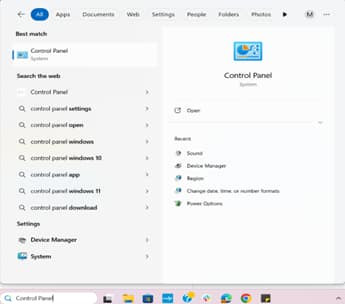
- Open Control Panel:
- Search Control Panel in the Start menu.
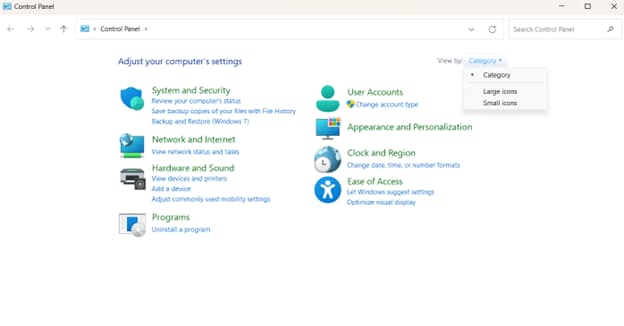
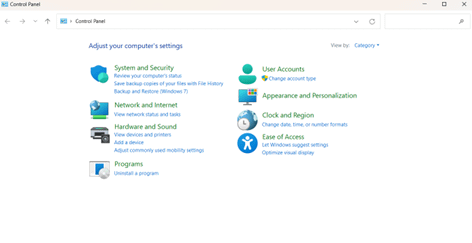
- Set View by on the top-right corner to Category.
- Access Region Settings:
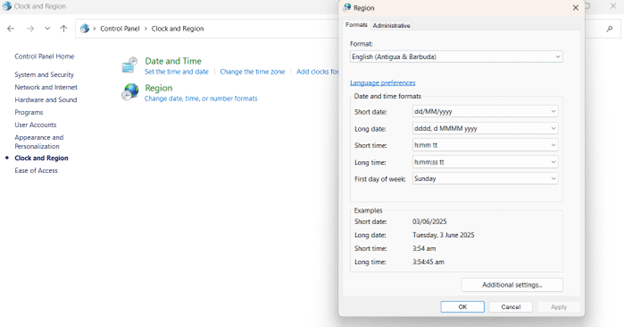
- Click Clock and Region > Region.
- A new window will open for Region. Select the Formats tab.
- Customize time format:
- Under Date and time formats:
- In Short time or Long time:
- Use the h: mm tt or hh: mm: ss tt for the 12-hour format (e.g., 3:00 PM).
- Use the HH: mm or HH: mm: ss for the 24-hour format (e.g., 15:00).
- Apply system-wide changes:
- Click Apply to save changes.
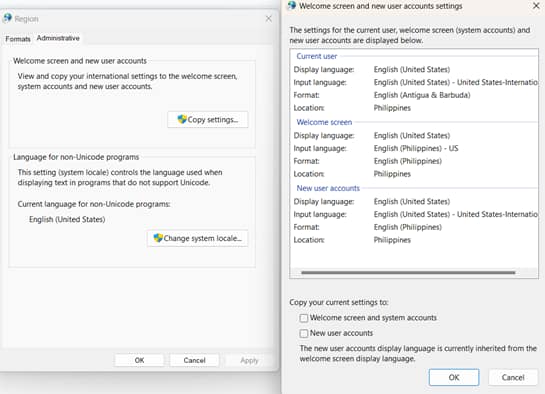
- Go to the Administrative tab, then click Copy settings.
- Check Welcome screen and system accounts, then click OK.
- Restart device
- Reboot to ensure the lock screen time format updates for all users.
Note: This method requires administrator rights. Make sure you are using an admin user account when making changes.